Building GUIs with Zuzu-Designer
This tool makes it so easy
This tutorial assumes you have:
- zuzu-designer 0.1.0
- zuzu-rust 0.4.0
- ZuzuScript standalone browser bundle 0.4.0
All of these are available on the downloads page.
Designing the GUI
Just run zuzu-designer and a window will pop up allowing you to design a GUI. On the left side there is a tree view showing how the GUI controls are nested within each other, from the top level Window object, through to containers like VBox and HBox that allow you to arrange controls, down to individual widgets like buttons and text labels.
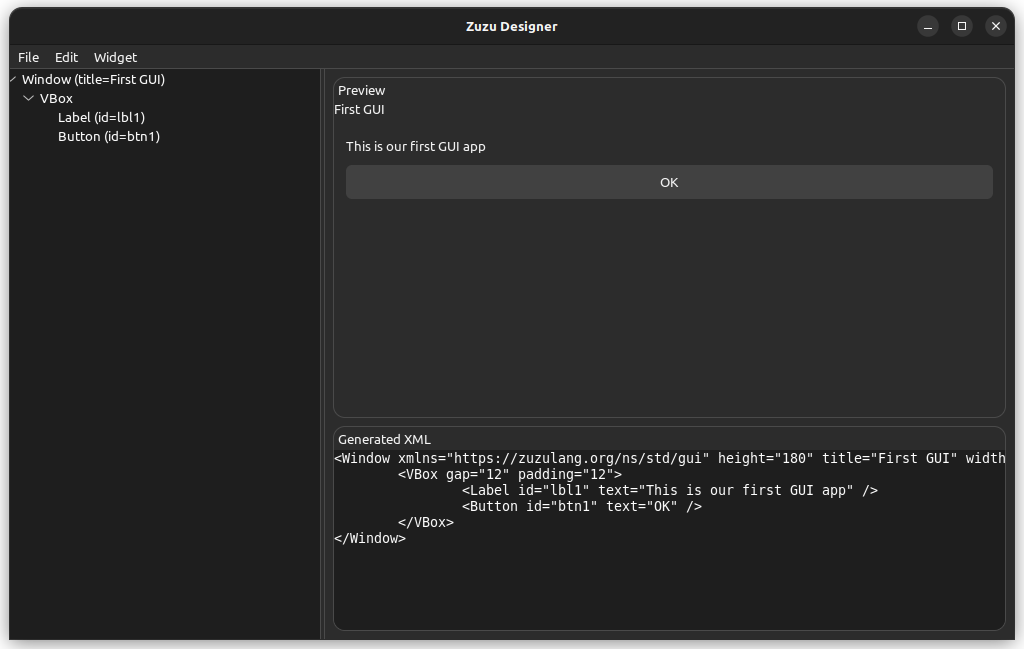
For our example, we're just creating a Window with one VBox that contains a Label and a Button. Double clicking on anything within the tree view allows you to change that widget's properties. You can drag and drop items in the tree view to change their order or nesting. In the top right you can see a preview of the GUI and in the bottom right, you can see the Zuzu GUI XML.
Adding some code
We can take that XML and insert it into a small ZuzuScript.
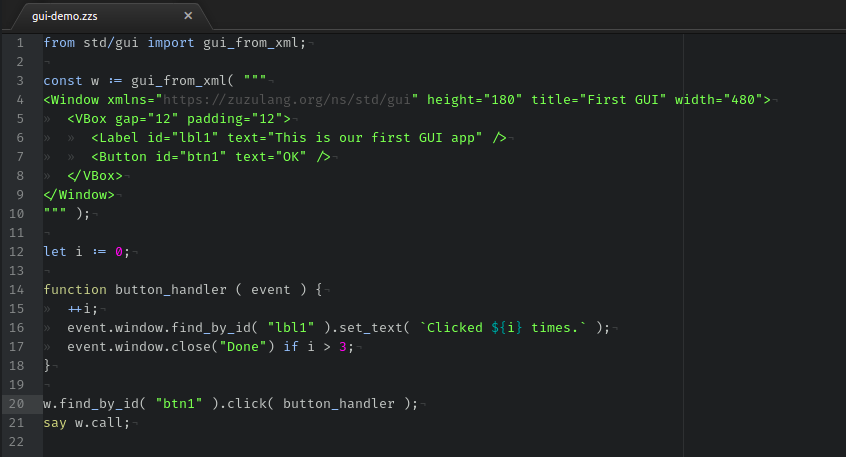
Here we've attached a "click" handler to the button. This is just a function which increments a variable i then sets the label's text to show how many times the button has been clicked. If i > 3 then we will close the window. Note we're providing the string "Done" when we close the window. Remember that for later.
Windows start off hidden, so after attaching the click handler, we call w.call() to show the window.
Running the script.
At the command line we run:
zuzu-rust gui-demo.zzs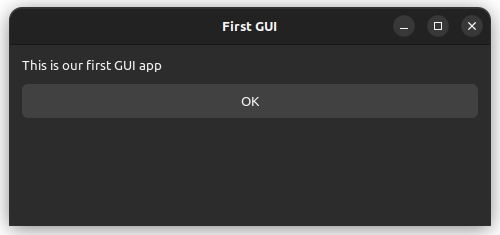
It works!
We click the button a couple of times.
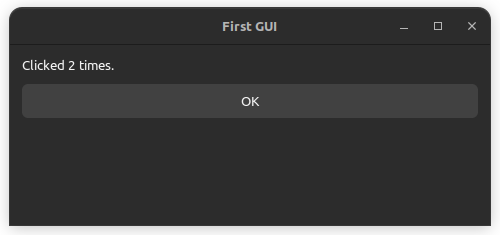
Click it a couple more times and i should reach 4 and the window should close.
You'll note that the word "Done" is printed out on the terminal. This is because our w.call() doesn't just show the window, but waits for the window to be closed and returns the result (that string "Done"), so this is what the say command prints.
Moving to the browser
Now let's embed this script in HTML.
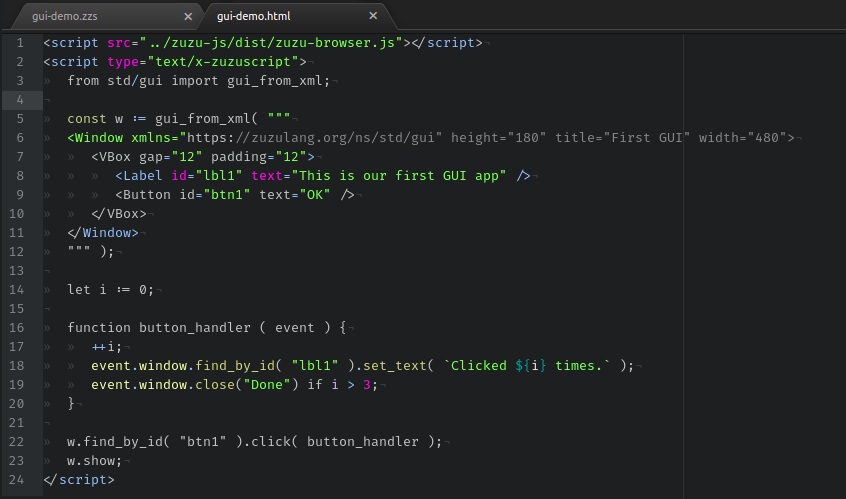
Loading the standalone browser bundle (line 1) allows <script type="text/x-zuzuscript"> scripts to be recognized as ZuzuScript and executed.
The only other change we've made is replacing the say w.call with w.show. This is because w.call waits for the window to be closed before the script continues running but the in-browser environment is designed for asynchronous scripting and doesn't like code that blocks, waiting for a long time. The w.show method shows the window without waiting for it to close.
Viewing the web page
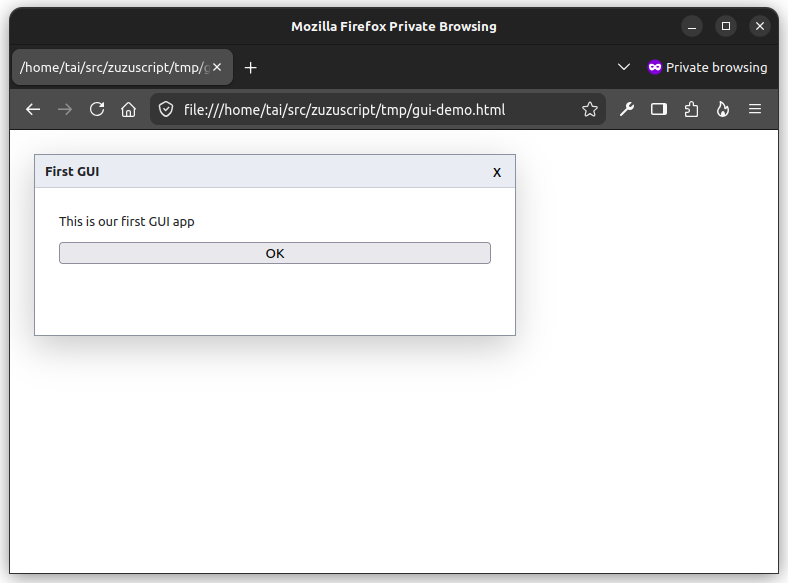
And just like that, the GUI appears in the browser:
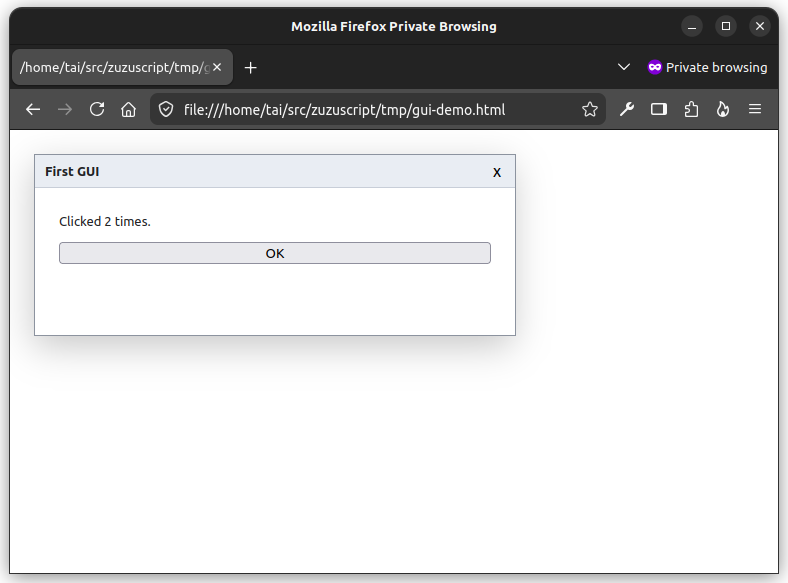
And we can interact with it just like before:
The std/gui toolkit is not always the most powerful nor the most attractive GUI toolkit, but it's very easy to work with, and being able to easily move between desktop apps and the browser is an awesome feature.